Custom Dashboards
ThreatStream enables you to surface Threat Intelligence data of interest and customize your landing page experience through the creation of custom dashboards. Each dashboard can contain up to 20 customizable widgets. Widgets display Threat Intelligence data on chart types of your choosing based on saved observable or Threat Model search filters. You can drill into data sets on the observables or Threat Model search page by clicking any of the data visualizations, such as a section of a pie chart, a line on a sparkline chart, a number chart, and so on.
There is no limit on the total number of custom dashboards an individual ThreatStream user can create. However, at most 10 custom dashboards can be shown on their home screen at any time. There is no limit on the total number of dashboards across all users in an organization.
When you create a custom dashboard, you choose whether the dashboard is visible only to you or made available to all users in your organization.
Read Only users cannot create or clone custom dashboards. However, Read Only users can add shared custom dashboards created by fellow organization users and themed dashboards created by the Anomali Threat Research team to their home screens on ThreatStream. See Adding Organization Shared Custom Dashboards for more information.
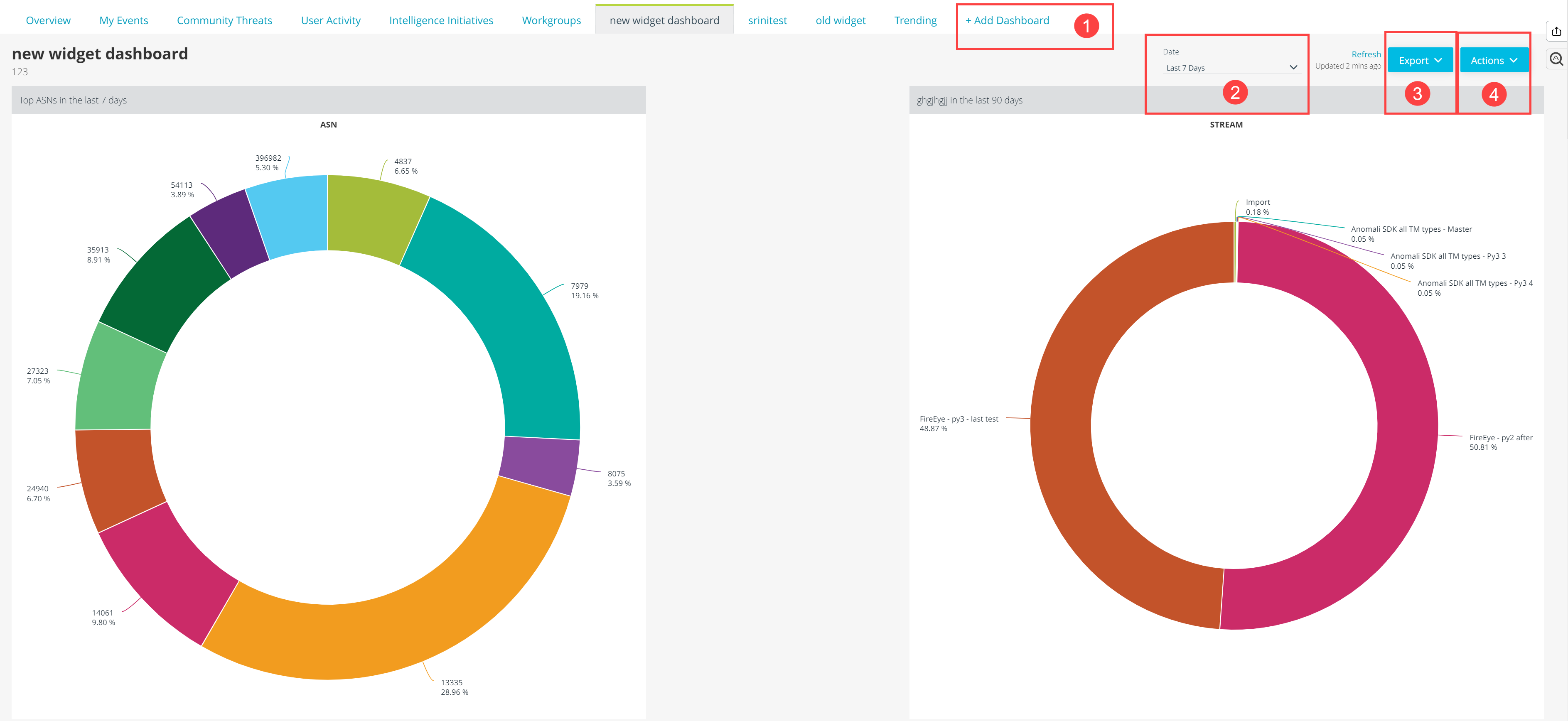
 + Add Dashboard: Add a new custom dashboard. See Creating Custom Dashboards for more information.
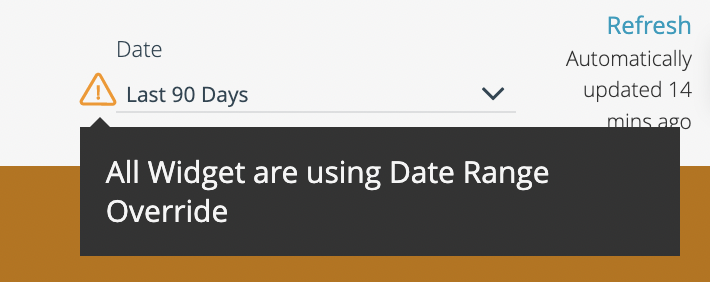
 Date: Select the period of time you want to be reflected in the dashboard. You can select Last 24 Hours, Last 7 Days, Last 30 Days, Last 60 Days, Last 90 Days, or set a custom time period by clicking on the calendar icon.
 Export: Export the dashboard as a PDF file with or without notes. See Exporting Custom Dashboards for more information.
 Actions:
-
Edit Dashboard: Edit dashboard settings. See Editing Custom Dashboards for more information.
-
Add Widget: Add a widget to the dashboard. See Adding Standard Widgets to Custom Dashboards, Creating Custom Dashboards, and Adding Anomali Copilot Trending Widgets to Custom Dashboards for more information.
-
Clone Dashboard: Create a copy of the dashboard. This action is only available for custom dashboards shared within your organization, as well as themed custom dashboards published by the Anomali Threat Research (ATR) team. Additionally, this action is not available for Read Only users. See Cloning Shared Dashboards and for more information.
-
Delete Dashboard: Delete the dashboard. This action is only available to the creator of the dashboard. See Deleting Custom Dashboards for more information.
-
Hide Dashboard: Hide the dashboard from your home screen. You can restore a hidden dashboard from Manage > Manage Dashboards. Because you can show a maximum of 10 custom dashboards on your home screen at any time, this action allows you to remove a dashboard from your home screen without deleting it permanently.
-
Manage Dashboard: Manage your custom dashboards. See Managing Dashboards for more information.